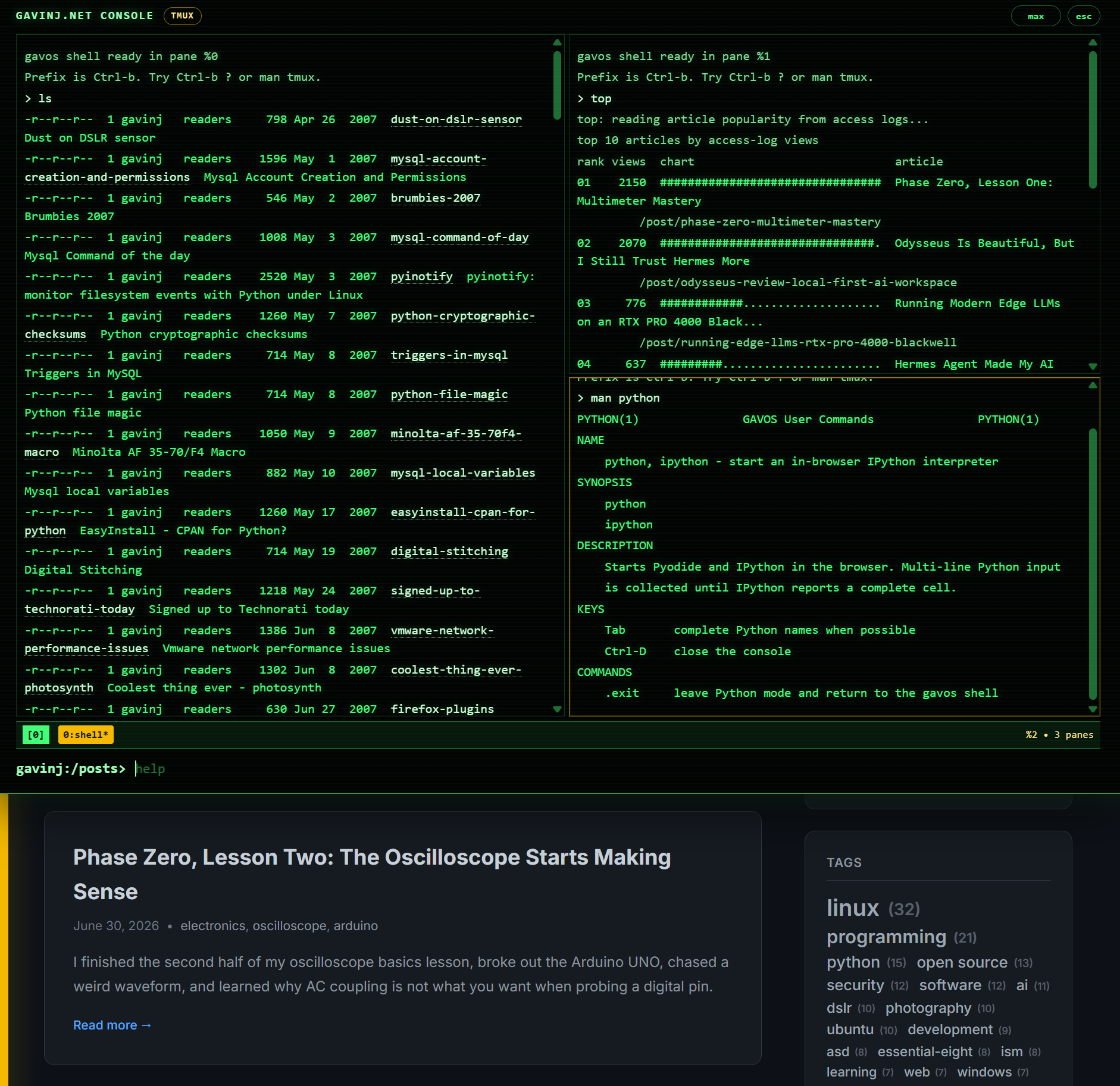
I have made it a mission to learn tmux properly.
That probably sounds slightly ridiculous because I first wrote “tmux - where have you been all my life?” back in 2016, and I revisited the subject in my terminal multiplexing guide earlier this year. I know what tmux does. I understand why people love it. Yet when I am connected to a Linux box and need a long-running shell, my hands still type screen.
GNU Screen is my traditional go-to. It is dependable, familiar and buried deep in my muscle memory. Under pressure, familiarity wins.
So I have tried a different tactic: I have built tmux into Gavos, the secret console on gavinj.net. Press the backtick key on a desktop browser, type tmux, and Gavos now gives you sessions, windows, panes, the standard Ctrl-b prefix and a man tmux page. There are clickable tabs too, but the keyboard shortcuts are the point.
The implementation is deliberately a browser-sized teaching version, not a replacement for real tmux. Sessions persist while the page remains open, including when the console is hidden or the session is detached. The aim is to make the core model familiar enough that the real thing stops feeling foreign.
Emulator or multiplexer?
I think every Linux administrator should know how to use a terminal multiplexer.
That wording matters. iTerm2, Terminator and WezTerm are terminal emulators: they provide the window in which a shell runs. tmux and GNU Screen are terminal multiplexers: they run inside that terminal, keep multiple shells organised and let you detach a client without ending the session.
For an administrator, that last part is the killer feature. Start an upgrade, a log tail or an incident-response session inside tmux and a dropped SSH connection does not have to destroy your working context. Reconnect, reattach and carry on. The tmux server and its programs still need the host to remain running; ordinary tmux sessions do not magically survive a reboot.
Screen already solves the persistence problem. What attracts me to tmux is the way sessions, windows and panes fit together, the discoverable command interface, and how natural it feels to build a whole working layout inside one connection. It feels like the modern refinement of the workflow I already trust.
Install tmux
tmux is packaged by the major Linux distributions. The commands below follow the project's official installation guide:
# Debian or Ubuntu
sudo apt install tmux

# Fedora
sudo dnf install tmux

# RHEL or CentOS
sudo yum install tmux

# Arch Linux
sudo pacman -S tmux

# openSUSE
sudo zypper install tmux

# macOS with Homebrew
brew install tmux
Confirm what you installed with:
tmux -VThe mental model
tmux has three layers:
- A session is a persistent workspace. You might have one called
productionand another calledblog. - A window is a full terminal screen inside a session. Think of it as a tab.
- A pane is one split region inside a window.
Most shortcuts begin with the default prefix, Ctrl-b. Press and release Ctrl-b, then press the command key. It is a sequence, not one giant chord. In tmux notation, that prefix appears as C-b.
Your first ten minutes
Create and attach to a named session:
tmux new -s learningNow practise this little circuit:
- Press
Ctrl-b cto create another window. - Press
Ctrl-b %to split the current pane into left and right panes. - Press
Ctrl-b "to split the current pane into top and bottom panes. - Press
Ctrl-bfollowed by an arrow key to move between panes. - Press
Ctrl-b zto zoom the active pane, then repeat it to restore the layout. - Press
Ctrl-b dto detach from the session.
Back at the ordinary shell, list the sessions:
tmux lsThen return to the one you created:
tmux attach -t learningThat is the essential tmux loop: create, organise, detach, reattach. The official Getting Started guide goes deeper, but this is enough to make tmux useful today.
Where iTerm2 Has the Edge
iTerm2 on macOS has a genuinely clever tmux integration. Run
tmux -CC new -s admin, or reattach withtmux -CC attach -t admin, and iTerm2 uses tmux's control mode to present tmux windows and panes as native iTerm2 tabs and split panes. Creating, closing and resizing them in the GUI sends the corresponding commands to tmux. If SSH drops, tmux keeps the session running; reconnecting and attaching can restore those iTerm2 windows.That is different from merely running tmux inside a split terminal. tmux control mode is a text protocol designed so applications can drive tmux and render its panes in their own interface.
I wish Terminator did the same thing. Terminator is still my familiar Linux terminal and it already has very good native tabs and split panes:
Ctrl-Shift-Osplits horizontally andCtrl-Shift-Esplits vertically. What I could not find in its current documentation is an iTerm2-style tmux control-mode integration. Terminator's splits and tmux's panes therefore remain two separate layers rather than one shared layout.The closest well-documented Linux equivalent I found is WezTerm's built-in multiplexing. WezTerm can attach local or remote multiplexing domains to its native windows, tabs and panes, giving a very similar user experience on Linux. There is an important catch: it uses the WezTerm multiplexer, not tmux control mode, and a compatible WezTerm installation is required on the remote host for its SSH multiplexing domains. It is an alternative to the workflow, not a drop-in GUI for an existing tmux session.
Essential tmux cheat sheet
Everything in the second table follows Ctrl-b. For example, “c” means press and release Ctrl-b, then press c. These are the default bindings documented in the tmux manual.
From the shell
| Command | What it does |
|---|---|
tmux |
Create and attach to a new automatically named session |
tmux new -s NAME |
Create and attach to a named session |
tmux new -d -s NAME |
Create a named session without attaching |
tmux ls |
List sessions |
tmux attach -t NAME |
Attach to a session |
tmux rename-session -t OLD NEW |
Rename a session |
tmux kill-session -t NAME |
Kill a named session |
Inside tmux
| Prefix key | What it does |
|---|---|
? |
Show all current key bindings |
d |
Detach from the current session |
s |
Choose a session |
$ |
Rename the current session |
c |
Create a window |
n / p |
Move to the next / previous window |
0 to 9 |
Select a window by number |
w |
Choose a window interactively |
, |
Rename the current window |
& |
Kill the current window after confirmation |
% |
Split into left and right panes |
" |
Split into top and bottom panes |
Arrow |
Move to the pane in that direction |
o |
Move to the next pane |
; |
Return to the previously active pane |
q |
Briefly show pane numbers |
z |
Zoom or restore the current pane |
x |
Kill the current pane after confirmation |
Space |
Cycle through pane layouts |
[ |
Enter copy mode to scroll through history |
] |
Paste the most recently copied tmux buffer |
: |
Open the tmux command prompt |
If you remember only six combinations, make them c, %, ", an arrow key, z and d. You can always use Ctrl-b ? when your memory fails.
Building the habit
My plan is intentionally boring:
- Start a named tmux session whenever I SSH into a machine to do real work.
- Use windows for separate jobs and panes when I need to see two jobs at once.
- Detach before disconnecting, even when I do not strictly need to.
- Keep the default
Ctrl-bprefix until the standard shortcuts become automatic. - Practise in Gavos when I catch myself reaching for Screen.
I am not deleting screen or pretending it suddenly became a bad tool. This is about replacing a reflex, and reflexes only change through repetition. I can already see why tmux is better for the way I want to work. Now I need my fingers to catch up.
Press the backtick key anywhere on gavinj.net, type tmux, and have a play. If you get lost, Ctrl-b ? and man tmux are there to bring you home.
Further reading: